Environment Setup
This exercise must be completed in a Docker container. There are two ways to get one:
- Run Docker natively (preferred): this solution is faster in terms of performance, but requires a machine where you can install Docker (e.g., your own laptop, with administrator rights).
- Use a GitHub Codespace: this solution only requires a web browser, which is useful on machines without administrator access (e.g., lab machines). However it is also slower, especially on the free student-accessible tier of Codespace.
Prefer solution 1 when possible; fall back to solution 2 only if you have no access to a machine with Docker.
Running Docker Natively
Installing Docker
Install the Docker container engine following the instructions here: Docker CE (command-line) on Linux, Docker Desktop on Windows/Mac.
Pulling and Launching the Container
Pull the exercise image (only needed once), then run it to get a shell inside the container:
$ docker pull olivierpierre/comp26020-lab
$ docker run -it olivierpierre/comp26020-lab
For Mac users with ARM CPUs: if when running these commands Docker complains about the arm64 image not being available, force the use of the x86-64 image by adding the
--platform linux/amd64option to the command line invocation of Docker:$ docker pull --platform linux/amd64 olivierpierre/comp26020-lab $ docker run -it --platform linux/amd64 olivierpierre/comp26020-lab
In another terminal, list running containers with:
$ docker ps
You can get an extra shell into a running container one with:
$ docker exec -it <container-id> /bin/bash
Exiting the initial shell (ontainer with docker run) will stop the container.
To restart a stopped container and open a shell in it:
$ docker start <container-id>
$ docker exec -it <container-id> /bin/bash
docker ps -a lists all containers, including stopped ones, which is useful to find the ID of a previously stopped container.
docker start runs the container in the background; stop it again with docker stop <container-id>.
Attaching VSCode to a Running Container
The exercise can be done from the command line (e.g., using editors such as vim/nano), but an IDE is more practical.
Install the Dev Containers extension, open the Containers tab in VSCode, right-click a running container and choose Attach Visual Studio Code to open a new window connected to it.
Codespace Environment
This solution requires a GitHub student account.
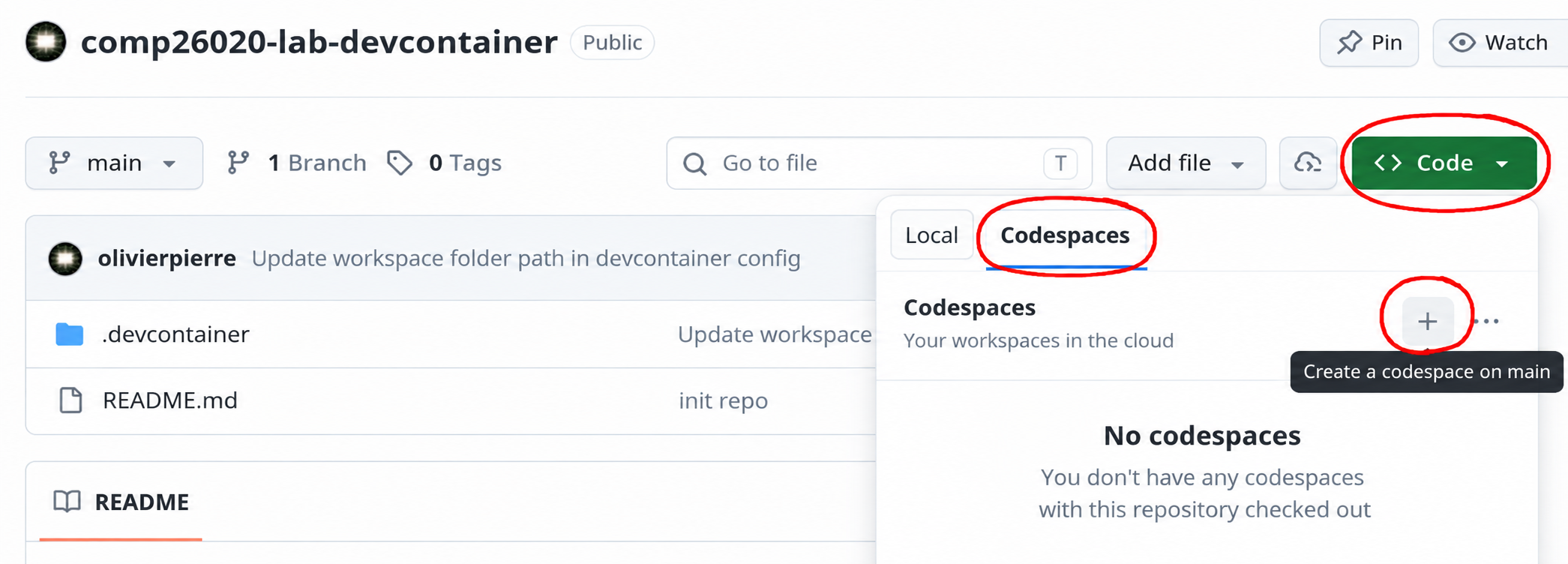
On this repository’s page, click <> Code → Codespaces → + to launch a browser-based VSCode environment.
The first launch takes a few minutes (pulling the container image); later launches are much faster.
You can manage running instances from here.